
IPTV Smart Player: My Easy Setup Guide for Beginners
A few weeks ago, a friend of mine bought a brand new Smart TV. He was so excited to finally cut his cable bill. He went into his TV’s app store, searched around, and downloaded the IPTV Smart Player app.
But a few minutes later, he called me sounding super frustrated. “I opened the app, but there are no channels! It just asks me for a link. Is it broken?”
I had to laugh, because I made the exact same mistake when I first started! Today, I want to explain exactly how this popular app works and give you a super simple, step-by-step guide to setting it up on your TV or phone.
The Big Secret: It is Just an Empty Box
The most important thing to understand is that the IPTV Smart Player is exactly what its name says: a player.
Think of it like buying a brand new DVD player from the store. When you take it home and plug it in, it doesn’t automatically play movies. You still have to go buy a DVD to put inside it!
This app works the exact same way. It is a fantastic, clean, and easy-to-use menu system, but it is completely empty. To actually watch television, you have to get a “playlist” of channels from a TV service provider and plug it into the app. Most providers use a specific text file for this called an M3U playlist format or an “Xtream Codes API” login.
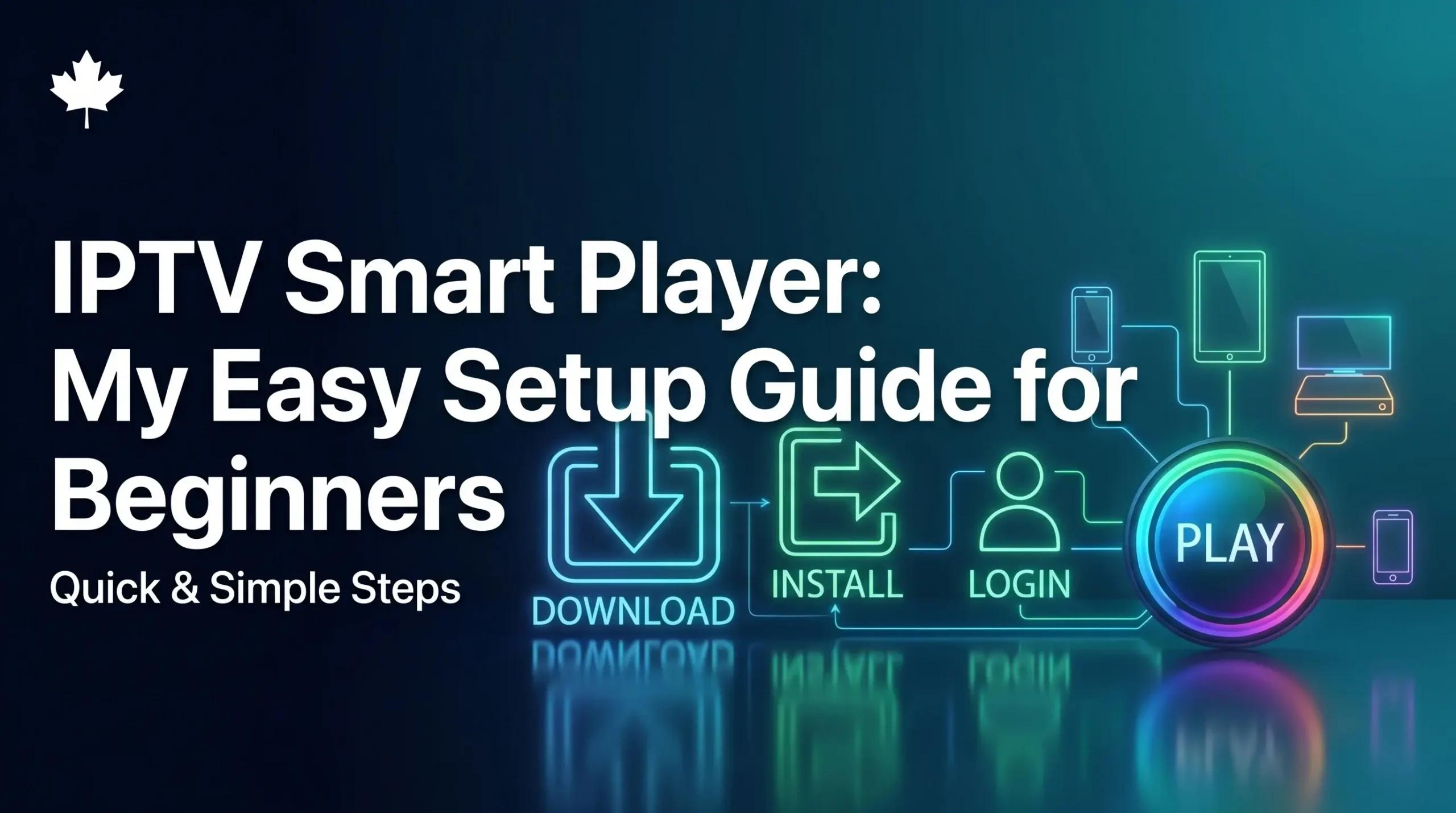
3 Simple Steps to Set Up Your Player
Once you understand that you need a provider, getting the app running takes less than five minutes. Here is the easy way to do it:
Step 1: Download the App
First, turn on your Smart TV, phone, or tablet. Go to the Apple App Store or the Google Play Store, search for the app by name, and hit download. Open it up, and you will see a screen asking you to “Add Playlist” or “Log In.”
Step 2: Get Your Login Details
Since the app is empty, you need to sign up for a TV service. I highly recommend finding a service that lets you test it out first! If you need help doing this, you can read my guide on how to get a free IPTV trial in Canada.
When you sign up, the TV company will send you an email with three things: a Username, a Password, and a Server URL.
Step 3: Type it In and Watch!
Go back to the app on your TV and select the “Login with Xtream Codes API” option (this is the easiest way).
- Type in any name you want for the “Playlist Name” (like “My TV”).
- Carefully type in the Username, Password, and Server URL your provider sent you.
- Click “Add User” or “Log In.”
Suddenly, the empty app will magically fill up with thousands of live channels, movies, and TV shows!
Finding the Best TV Service for the App
The app is only as good as the service you put inside it. If you use a cheap, laggy provider, your movies will freeze no matter how good the app is.
If you want a crystal-clear picture with no buffering, checking out a trusted Canadian TV service is the absolute best way to make sure your new app runs perfectly on game night.
Frequently Asked Questions (People Also Ask)
Is the IPTV Smart Player free?
Yes! The app itself is usually free to download and use from the app store. However, you still have to pay a monthly subscription to a TV provider to get the actual channels to watch inside it.
Why is my playlist not loading?
If your app says “Error” or “Playlist Not Found,” it almost always means there is a typo in your password. The passwords are very strict about capital and lowercase letters. Just go back and re-type your login details very slowly!
What devices does this app work on?
It is incredibly versatile. You can download this specific player on iPhone, iPad, Android phones, Android TV boxes, and most modern Smart TVs.
Do I need a VPN to use the app?
The app doesn’t require one, but using a VPN is always a smart idea when streaming live TV. It stops your internet company from slowing down your video speed during really big sports games!