
IPTV Quebec Setup Guide for Fire Stick and Smart TVs (2026)
Setting up IPTV on your Fire Stick in Quebec is easier than you think. First, connect your Fire Stick to Wi-Fi, then enable installation from unknown apps in your settings. Next, download the Downloader app from Amazon’s store, use it to install an IPTV player like IPTV Smarters Pro, and finally enter your subscription details to start watching your favorite Québec channels.
Why Fire Stick Is Perfect for IPTV in Quebec
IPTV (Internet Protocol Television) is basically TV that comes through your internet connection instead of cable wires or satellite dishes. Think of it like Netflix, but for live TV channels.
In Québec, IPTV has become super popular, especially on Fire Stick devices. Why? Because a Fire Stick costs around $50-80 and turns any regular TV into a smart TV. You can watch all your French channels like TVA, RDS, and Radio-Canada without needing a bulky cable box. Plus, you can unplug it and take it to your cottage or anywhere else.
The cord-cutting trend is massive in Canada. According to MobileSyrup’s 2024 streaming report, Canadian streaming subscription revenue grew 15 percent year-over-year to $4.2 billion in 2024, and Quebec households are switching to IPTV services in record numbers. Canadian households are choosing IPTV for flexible plans, better picture quality, and the freedom to watch what they actually want without paying for hundreds of channels they’ll never touch.
Here’s the thing though – most IPTV tutorials online are made for Americans or English-speaking Canadians. They don’t really focus on what Quebecers need, like French channels, regional sports, and specific Quebec networks. This guide is different. It’s a step-by-step walkthrough designed specifically for Quebec viewers, with clear instructions and spots marked for screenshots so you can follow along easily.
Whether you want to watch the Canadiens game, catch up on Tout le monde en parle, or stream movies in French, this guide will get you set up in about 9 minutes.
The Quick Answer: Setting Up IPTV on Your Fire Stick
Let me give you the quick version before we dive into the details:
- Prepare your Fire Stick: Plug it in, connect to your Wi-Fi, and make sure your internet is fast enough (at least 15 Mbps for HD).
- Enable “Install unknown apps”: Go to Settings → My Fire TV → Developer Options and turn on the option for Downloader.
- Install the Downloader app: Search for it in the Amazon Appstore and download it (it’s free).
- Get your IPTV player: Use Downloader to install IPTV Smarters Pro or TiviMate (the two most popular choices).
- Enter your IPTV login details: Open the app, add your account using the username and password from your IPTV provider, and start watching.
That’s it! Those are the five main steps. Now let’s break down each one with clear instructions and helpful tips.
What You Need Before You Start
Before we begin, make sure you have everything ready:
Device Requirements:
- A Fire TV Stick (any model works, but Fire Stick 4K or 4K Max gives the best picture quality)
- An Amazon account (you probably set this up when you first got the Fire Stick)
- A TV with an HDMI port
Internet Connection: You need decent internet speed to avoid buffering. Here’s what works best:
- SD quality (basic): At least 5 Mbps
- HD quality (1080p): At least 15 Mbps
- 4K quality (ultra HD): At least 25 Mbps
Most urban areas in Quebec, including Montreal, Quebec City, and Sherbrooke, typically have speeds of 50+ Mbps, which is more than enough for smooth 4K streaming.
IPTV Subscription: You’ll need an active IPTV subscription that provides either:
- An M3U playlist link (a web address that loads your channels)
- Xtream Codes login (a username, password, and server URL)
Your IPTV provider should email you these details after you sign up. If you haven’t chosen a provider yet, check out the Best IPTV Quebec 2026 guide to compare options that include all your favorite Québec and French channels.
Personal Experience Note: I set up IPTV for a friend in Montreal last month. They were using 2.4 GHz Wi-Fi, and streams kept freezing during Habs games. Once we switched their Fire Stick to the 5 GHz Wi-Fi band, everything ran smoothly. If you have the option, always use 5 GHz for IPTV – it makes a huge difference.
Related Questions to Cover
Before we jump into the setup steps, let me quickly answer some common questions I hear from Quebec users:
Can I use a Fire Stick for IPTV in Québec? Absolutely yes. Fire Sticks work perfectly with IPTV services in Quebec. They’re actually one of the most popular devices for IPTV because they’re affordable and easy to set up.
Is Amazon Fire Stick blocking IPTV apps? No, Amazon doesn’t block IPTV apps. However, most IPTV player apps aren’t available in the Amazon Appstore, so you need to sideload them using the Downloader app. That’s completely normal and allowed – you just need to enable one setting first (we’ll cover that in Step 2).
Which IPTV app is best for Fire Stick in Canada/Quebec? The two most popular are IPTV Smarters Pro (easiest for beginners) and TiviMate (more advanced features). Both work great for Quebec channels.
How do I get my Québec and French channels on Fire Stick? Once you install an IPTV player and enter your subscription details, all your channels load automatically. You can then create a favorites list with just your Quebec channels like TVA, RDS, LCN, and Radio-Canada so you don’t have to scroll through thousands of channels.
Let’s get started with the actual setup.
Step 1 – Prepare Your Fire Stick and Internet
Connect Fire Stick, Sign In, and Join Wi-Fi
If this is your first time using your Fire Stick, here’s how to get it running:
- Plug it in: Insert the Fire Stick into any HDMI port on your TV. Connect the power adapter to an outlet.
- Turn on your TV: Switch to the HDMI input where you plugged in the Fire Stick.
- Pair the remote: The Fire Stick should automatically detect the remote. If not, hold the Home button for 10 seconds.
- Select your language: Choose French if you prefer.
- Connect to Wi-Fi: Select your home network and enter the password.
- Sign in to Amazon: Enter your Amazon account email and password.
Pro Tip for Better Performance: If your router has both 2.4 GHz and 5 GHz Wi-Fi networks, always choose the 5 GHz network for your Fire Stick. It’s faster and has less interference, which means smoother streaming with less buffering. If you’re really serious about IPTV, you can also buy a cheap Ethernet adapter for your Fire Stick – wired connections are always more stable than Wi-Fi.
Check Your Internet Speed for IPTV Streaming
Before installing anything, let’s make sure your internet is fast enough. Here’s how:
- From the Fire Stick home screen, open the search function
- Type “Fast” and select the Fast.com app (it’s free)
- Open the app – it will automatically test your speed
What the numbers mean:
- Below 10 Mbps: You’ll struggle with HD content. Consider upgrading your internet plan.
- 10-15 Mbps: Good enough for HD channels, but might buffer during peak hours.
- 15-25 Mbps: Perfect for HD and some 4K content.
- Above 25 Mbps: Great for everything, including multiple 4K streams.
The Canadian IPTV market is growing fast because of better internet infrastructure, with 5G networks now enabling ultra-high definition streaming.
Real-World Example: In my Montreal apartment, I have 50 Mbps internet from Videotron. That’s more than enough to stream RDS in HD on my main TV while my kids watch TVA on a tablet in the other room. When I had 10 Mbps with my old provider, Hockey Night in Canada would buffer every time there was a goal. Speed really matters for sports.
Step 2 – Enable Installation from Unknown Apps (Fire OS 2026)
Turn On Developer Options and Unknown Apps
This step is super important. By default, Fire Sticks only let you install apps from Amazon’s official store. Since IPTV players like Smarters Pro aren’t in that store, we need to give permission to install them manually.
Don’t worry – this is completely safe and normal for IPTV setup. Amazon even provides official methods to access these Developer Options.
Here’s how to do it (Fire OS 2026 version):
- From your Fire Stick home screen, navigate to Settings (the gear icon at the top)
- Scroll right and select My Fire TV
- Scroll down and select Developer Options
- If you don’t see this option, tap on About seven times to unlock it, then go back
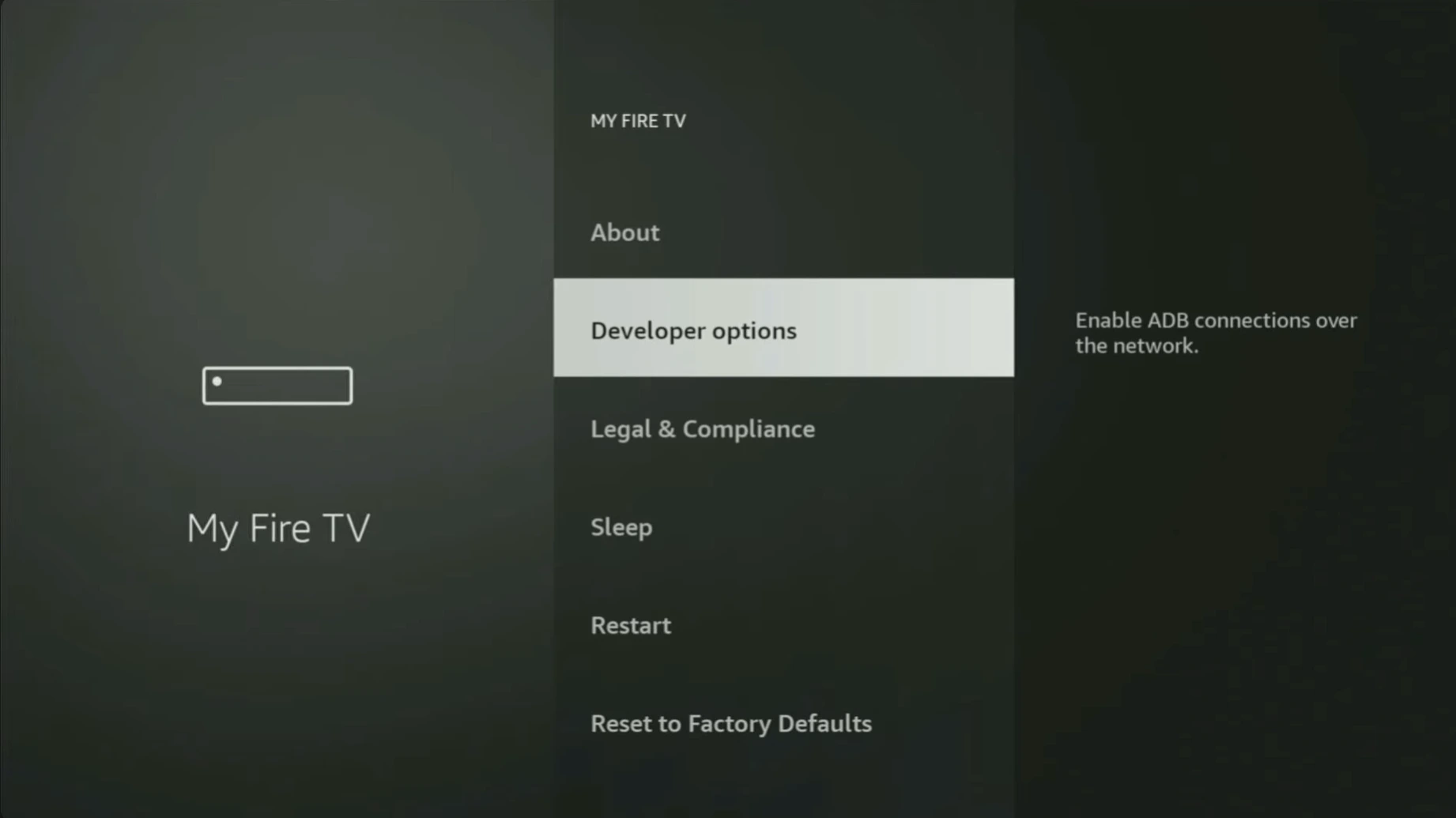
- Select Install Unknown Apps
- Find Downloader in the list and toggle it ON
Security Tips for Québec Users
Enabling this setting is safe, but here are some important security tips:
- Only enable it for trusted apps: Turn it on only for Downloader and your IPTV player app (like IPTV Smarters Pro).
- Never download from random links: Only use official download links provided by your IPTV provider or well-known IPTV apps.
- Avoid sketchy websites: Don’t sideload random APK files from forums or websites you don’t trust. Stick to reputable sources.
- Check your provider: Make sure you’re using a legitimate IPTV service. For help choosing one, see the Is IPTV Legal in Canada? guide.
Step 3 – Install the Downloader App
Get Downloader from the Amazon Appstore
Now we need to install Downloader, which is the bridge that lets us install IPTV apps. The good news is that Downloader itself IS available in the Amazon store, so this part is easy.
Step-by-step:
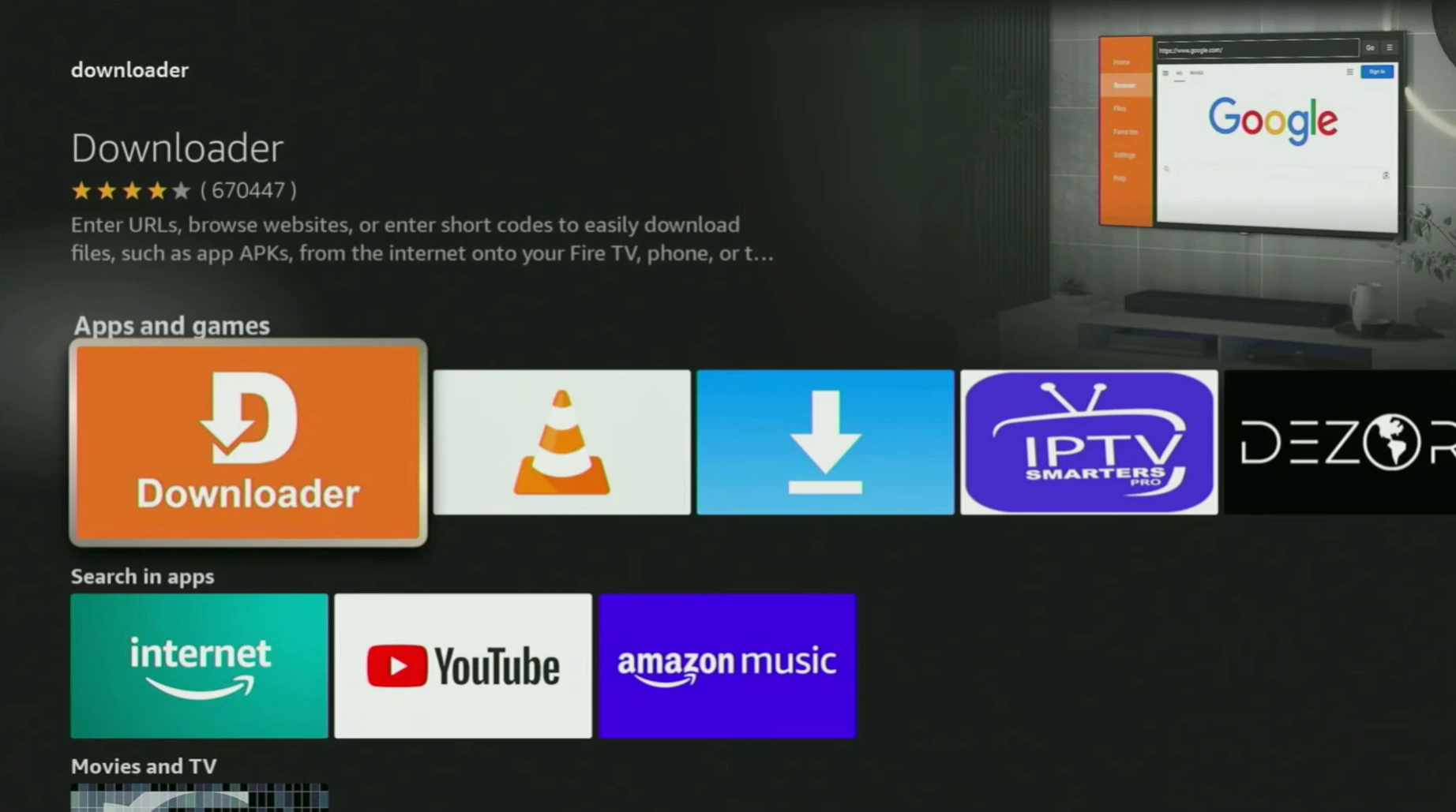
- From the Fire Stick home screen, click the search icon (magnifying glass)
- Type “Downloader” using the on-screen keyboard
- Select the orange Downloader app from the results (it should be the first one)
- Click Download or Get
- Wait about 30 seconds for it to install
- Click Open to launch it
Grant Downloader the Right Permissions
The first time you open Downloader, it will ask for permission to access your Fire Stick’s storage. This is normal – the app needs this to download and install files.
What you’ll see:
- A popup asking for storage permission
- Click Allow
- Another message about the app being for personal use – click OK
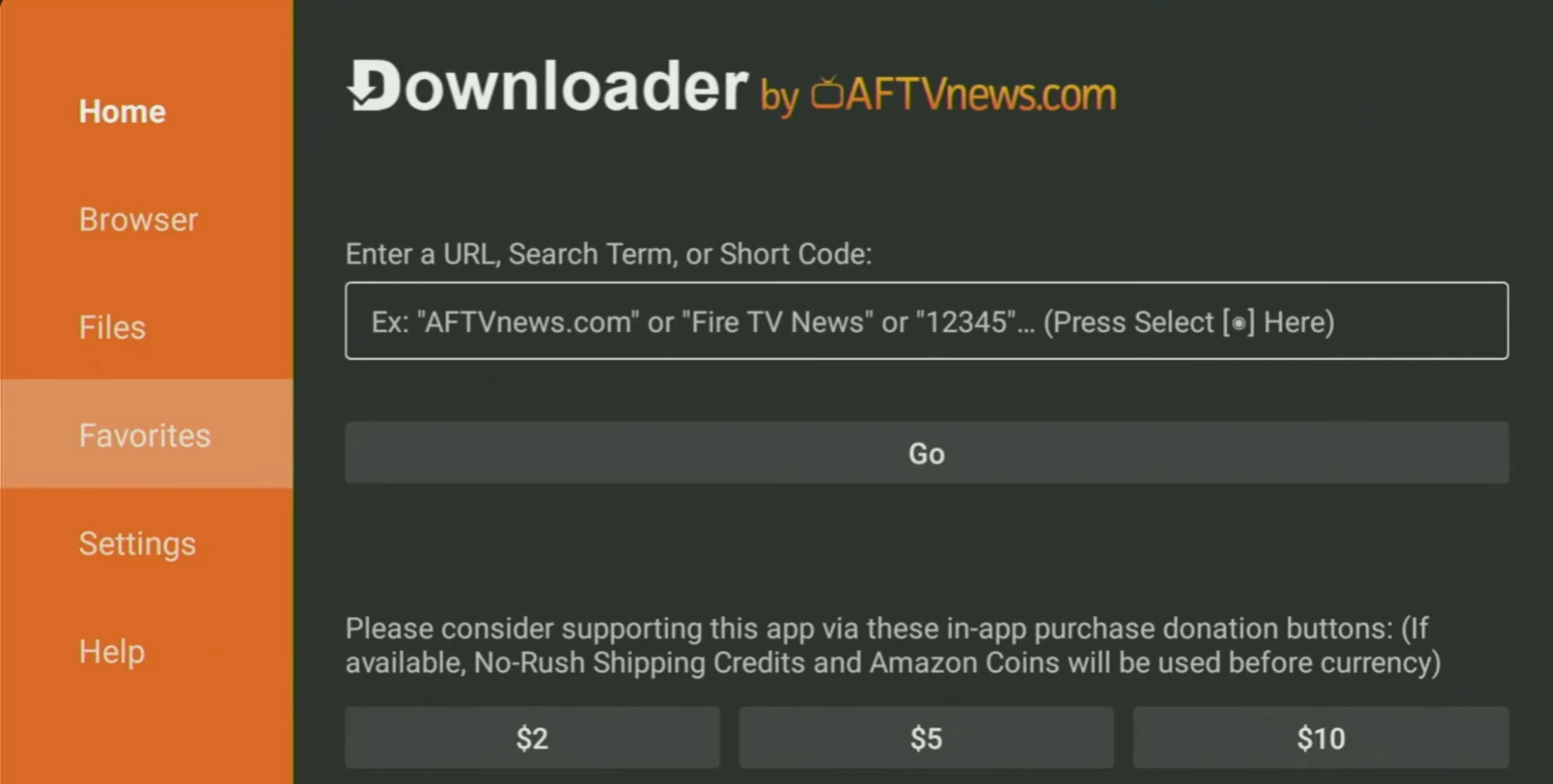
Once you do this, Downloader will open to a simple screen with a URL entry box.
Step 4 – Install an IPTV App (Example: IPTV Smarters Pro or TiviMate)
Choosing the Best IPTV App for Fire Stick in Quebec
Before we install anything, let’s talk about which app to choose. The two most popular options are:
IPTV Smarters Pro:
- Best for: Beginners and most Quebec users
- Pros: Super easy to set up, works with almost every IPTV provider, clean interface
- Cons: Basic features compared to TiviMate
TiviMate:
- Best for: Power users who want advanced features
- Pros: Better TV guide (EPG), more customization options, can manage multiple subscriptions
- Cons: Slightly more complicated to set up
My recommendation: If this is your first time setting up IPTV, go with IPTV Smarters Pro. It’s simpler and does everything most people need. You can always try TiviMate later if you want more features.
Install IPTV Smarters Pro Using Downloader
Alright, let’s install IPTV Smarters Pro. This is where Downloader becomes useful.
Detailed instructions:
- Open Downloader (if you just installed it, it should still be open)
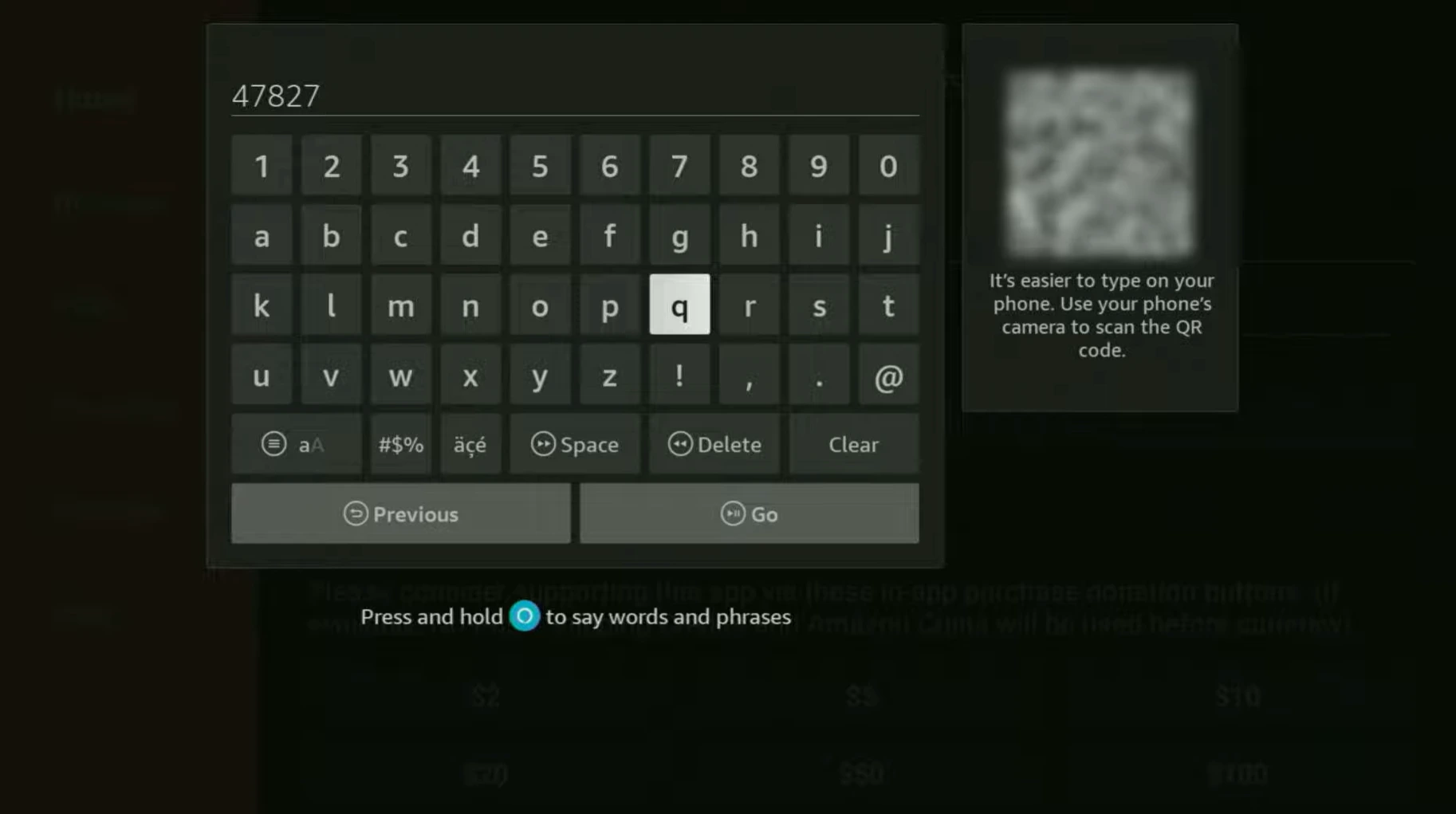
- In the URL box at the top, enter the download code ( 6468112 ):
- Your IPTV provider might give you a specific link
- Or use the official IPTV Smarters app code ( 6468112 )
- Important: Type the code exactly as provided
- Click GO and wait
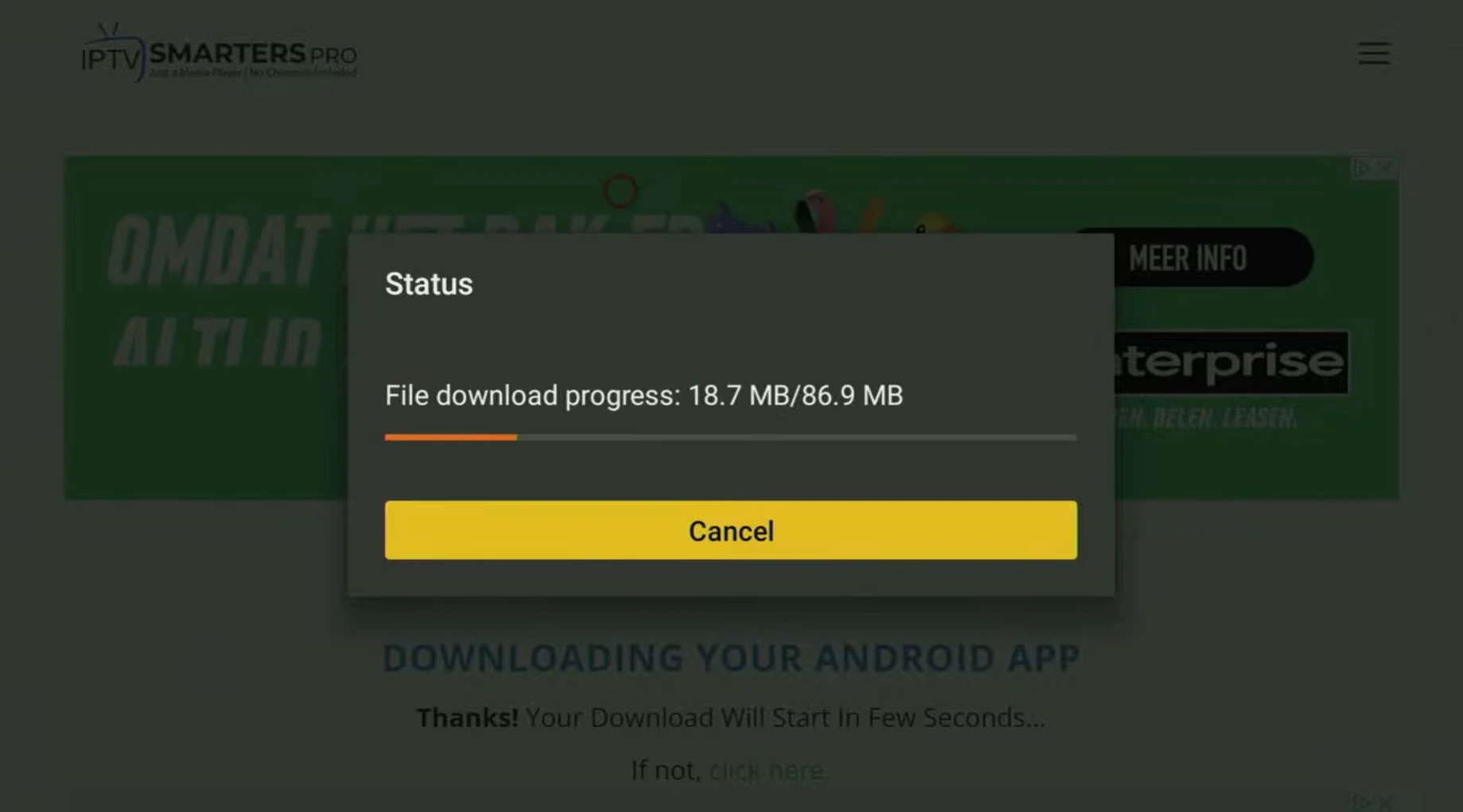
- The file will download (usually takes 1-2 minutes)
- You’ll see a progress bar
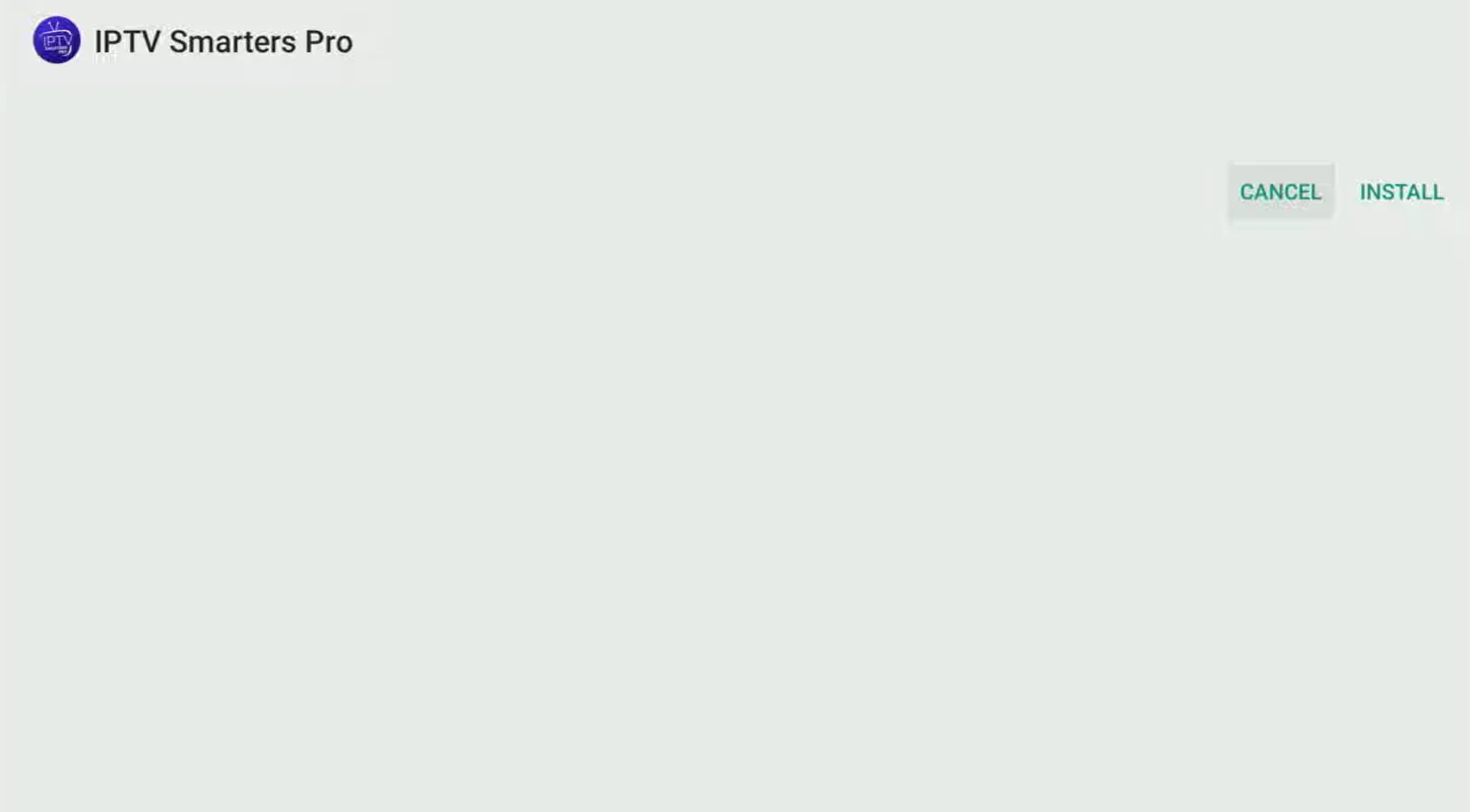
- When the download finishes, click INSTALL
- A popup will appear asking if you want to install this application
- Click Install again
- Wait about 30 seconds
- Click DONE when installation completes
- Delete the APK file (Downloader will ask if you want to delete it – click Delete to free up space)
- Return to home screen by pressing the Home button on your remote
- Find your new app:
- Go to Your Apps & Channels
- Scroll to find IPTV Smarters Pro
- Press and hold the Select button to move it to the front for easy access
Alternative – Install TiviMate or Another Player
The process is exactly the same for any IPTV player:
- Open Downloader
- Enter the download URL for TiviMate (or whatever app you want)
- Click GO, wait for download
- Click Install
- Done!
Note: Some IPTV providers have their own custom apps. If your provider sent you a specific download link, use that instead of IPTV Smarters. The installation steps are identical.
Step 5 – Connect Your IPTV Quebec Subscription
Find Your IPTV Login Details
Before you can watch anything, you need to connect your IPTV subscription to the app you just installed. Your IPTV provider should have sent you login credentials – usually by email or through your account dashboard on their website.
What to look for:
There are two main types of login methods:
Xtream Codes API (Most common):
- Server URL (looks like: http://server.example.com:port)
- Username
- Password
M3U Playlist URL (Also popular):
- One long web address that loads your channel list
- Looks like: http://provider.com/get.php?username=…&password=…
Less common:
- Portal URL and MAC address (mostly for MAG boxes and some older apps)
If you can’t find your login details, check:
- Your email inbox (including spam folder)
- Your IPTV provider’s website under “My Account” or “Subscription Details”
- Contact your provider’s customer support
For help choosing a reliable IPTV provider that clearly provides these details, check out Best IPTV Canada 2026 and the JET STREAM IPTV website.
Add Your Account in IPTV Smarters (Example)
Now let’s connect your subscription. I’ll use IPTV Smarters Pro as an example, but the process is very similar in other apps.
Step-by-step:
- Open IPTV Smarters Pro from your Fire Stick home screen
- Accept the terms and conditions (you’ll see this the first time only)
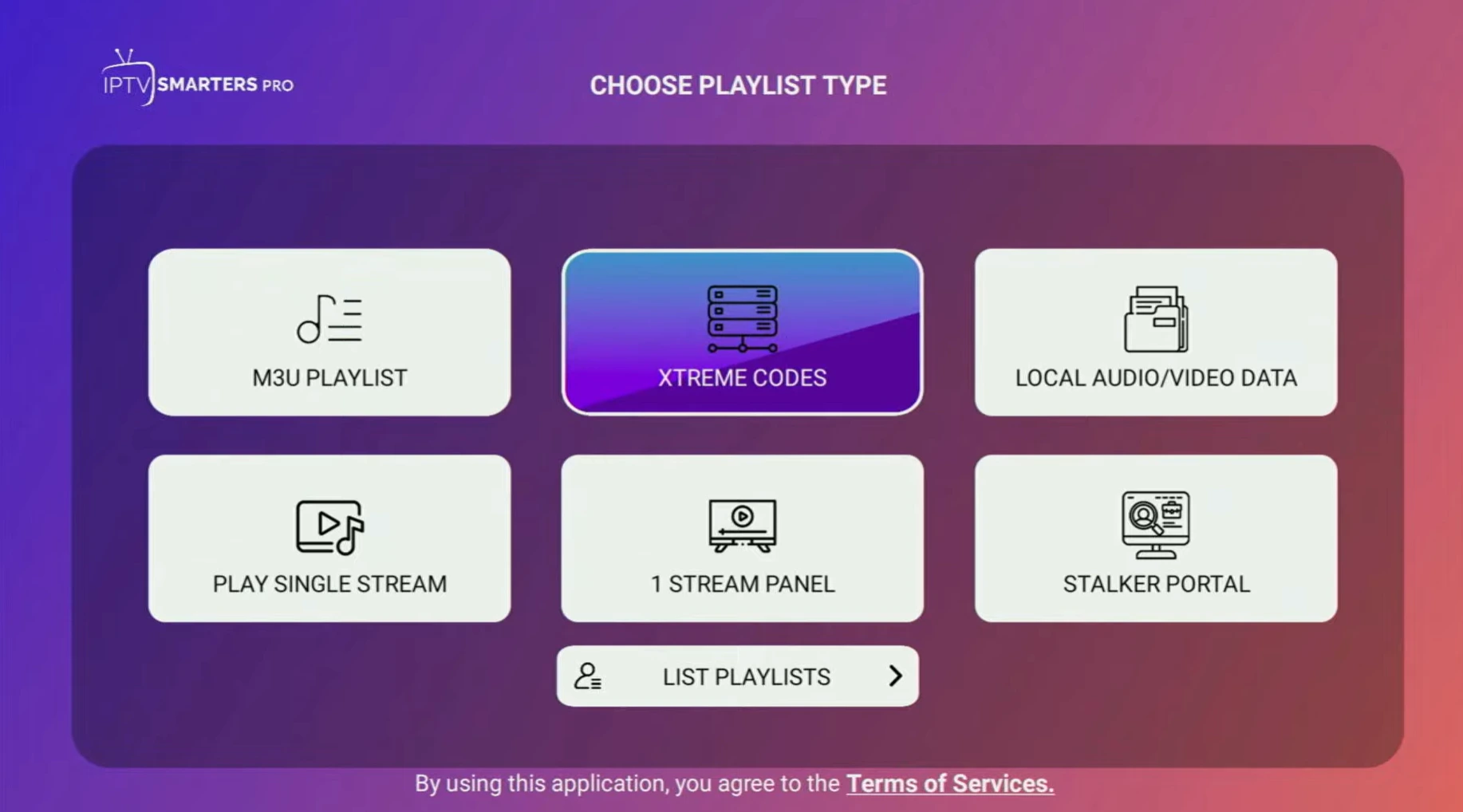
- Click “Add New User”
- Choose your login method:
- For Xtream Codes: select “Login with Xtream Codes API”
- For M3U URL: select “Load Your Playlist or File/URL”
- Enter your details (for Xtream Codes):
- Username: Enter exactly as provided
- Password: Enter exactly as provided
- URL/Server: Enter the server address
- Profile name: Give it any name you want (like “My IPTV” or “Quebec Channels”)
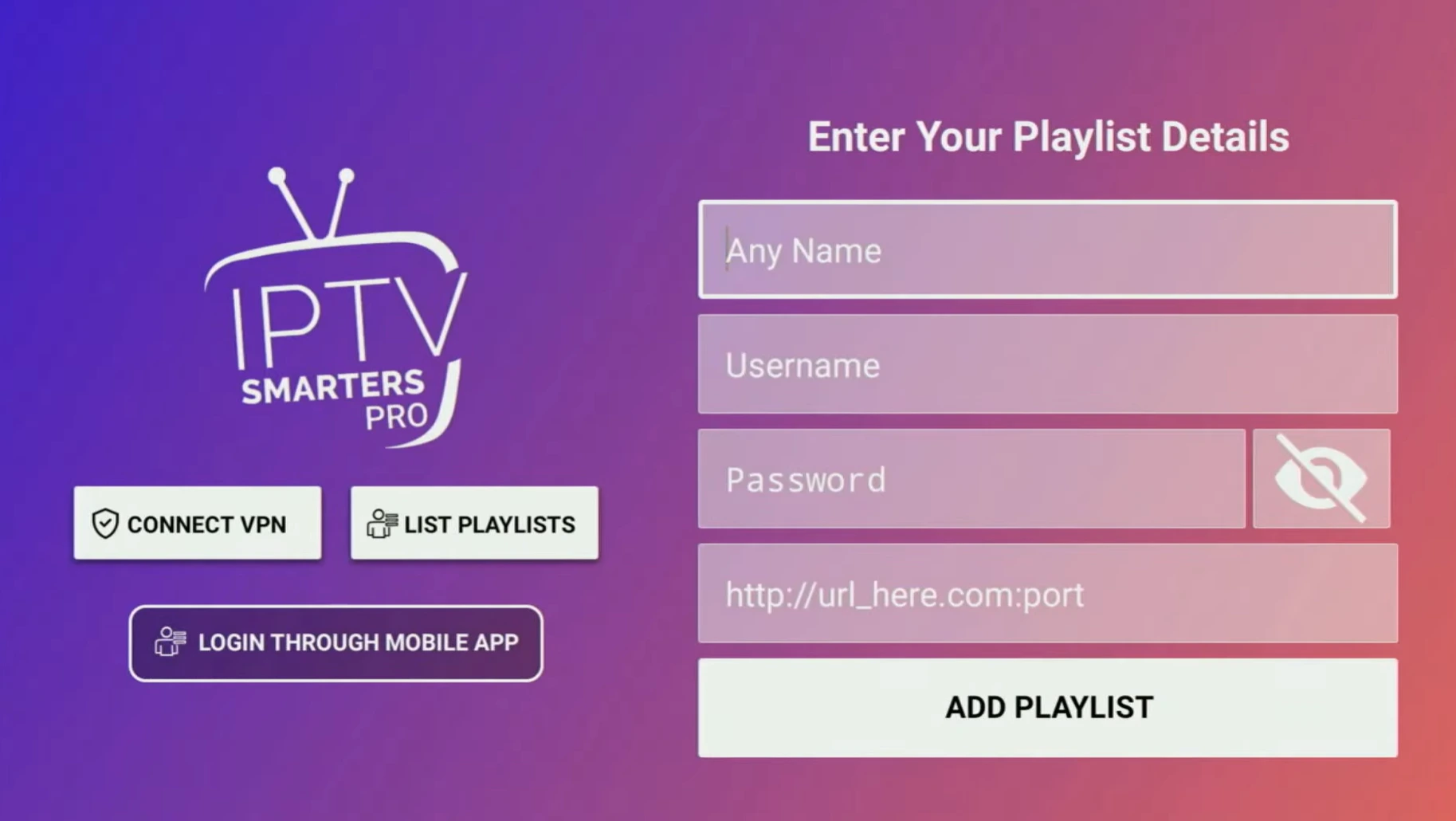
- Click “Add User”
- Wait for channels to load:
- The app will connect to the server
- It will download your channel list and TV guide (EPG)
- This usually takes 30 seconds to 2 minutes
- Start watching!
- Your channels should now appear
- Browse by category or use the search function
Step 6 – Organize Québec Channels and Optimize Playback
Create Favorites for Québec and French Channels
Now that your channels are loaded, you probably have thousands of them from all over the world. Instead of scrolling forever to find TVA or RDS, let’s create a favorites list with just your Quebec channels.
How to add favorites in IPTV Smarters:
- Browse to a Quebec channel you watch often (like TVA, RDS, or Radio-Canada)
- Press and hold the Select button on your remote
- Select “Add to Favorites” from the popup menu
- Repeat for all your must-watch channels
Suggested Quebec channels to favorite:
- French TV: TVA, Radio-Canada, Télé-Québec, Noovo, Canal Vie
- Sports: RDS, TVA Sports, TSN (French), Sportsnet
- News: LCN, RDI, TVA Nouvelles
- Entertainment: MusiquePlus, Z, Vrak
Once you’ve added your favorites, you can quickly access them by going to the “Favorites” category in your app. This saves tons of time.
To see exactly which Québec and French channels are included with different IPTV services, you can browse provider channel lists before subscribing. For example, services like IPTV Canada specialize in Quebec content with comprehensive French-language programming including TVA, RDS, and regional channels.
[Screenshot placeholder: Favorites list displaying Québec channel names and logos]
Adjust Player Settings to Reduce Buffering
If you’re experiencing buffering or freezing (especially during sports), try these settings tweaks:
In IPTV Smarters Pro:
- Open the app settings (gear icon)
- Go to Player Settings
- Try these adjustments:
For hardware acceleration:
- Enable Hardware Decoder (this uses your Fire Stick’s graphics chip for smoother playback)
For buffer size:
- Increase Buffer Before Play to 3-5 seconds
- Increase Buffer Size to Medium or High
For stream quality:
- If you have slower internet, switch to SD or 720p instead of 1080p or 4K
- Some providers offer multiple stream qualities – choose the one that doesn’t buffer
Personal Story: Last February, I was watching a Canadiens vs Bruins game at my brother’s place in Quebec City. The stream kept freezing right when the Habs scored (of course!). We went into settings, switched the decoder from software to hardware, and bumped up the buffer to 5 seconds. The rest of the game played perfectly smooth. These little settings make a huge difference.
Step 7 – Quick Setup on Smart TVs (Samsung, LG, Android TV)
When to Use Native Apps vs Fire Stick
You don’t always need a Fire Stick – many newer Smart TVs can run IPTV apps directly. But here’s when each option makes sense:
Use your TV’s built-in apps when:
- You have a newer Samsung, LG, or Android TV
- The IPTV app you want is available in your TV’s app store
- You only use one TV
Use a Fire Stick when:
- Your TV is older or doesn’t have an app store
- The IPTV app you need isn’t available for your TV model
- You want the same setup on multiple TVs (just unplug and move the Fire Stick)
- You want a faster, more responsive interface
Many Quebec users prefer Fire Stick because it gives the same experience on any TV, and you can take it to your cottage, hotel room, or anywhere else.
Basic Steps for Popular Smart TV Platforms
Here’s a quick overview of setting up IPTV directly on Smart TVs:
Samsung Smart TV (Tizen OS):
- Open the Samsung App Store
- Search for “Smart IPTV” or “IPTV Smarters”
- Install the app
- Open it and enter your subscription details (same as Fire Stick)
LG Smart TV (webOS):
- Open the LG Content Store
- Search for “Smart IPTV” or “SS IPTV”
- Install and configure with your login details
Android TV (Sony, TCL, Hisense, etc.):
- Open the Google Play Store
- Search for “IPTV Smarters Pro” or “TiviMate”
- Install and set up (same process as Fire Stick)
Important: Not all IPTV apps are available on all TV platforms. If you can’t find the app you need, that’s when a Fire Stick comes in handy – it works on any TV with an HDMI port.
For more detailed device-specific instructions, visit the Best IPTV Quebec 2026 buyer’s guide.
Troubleshooting – Common IPTV Fire Stick Problems in Québec
Buffering, Freezing, and Channels Not Loading
Even with a perfect setup, you might run into problems. Here are the most common issues and how to fix them:
| Problem | Likely Cause | Quick Fix |
|---|---|---|
| Stream keeps buffering | Weak Wi-Fi signal or slow internet | Move router closer, switch to 5 GHz Wi-Fi, lower stream quality, or use Ethernet adapter |
| Some channels won’t open | Provider server issue or wrong playlist | Try other channels to test if it’s provider-wide; restart app; check if subscription is active |
| Audio out of sync | Player decoder problem | Go to settings → switch decoder type (software/hardware); restart stream |
| EPG (TV guide) not loading | EPG URL issue or time zone wrong | Refresh EPG in app settings; check time zone is set to Eastern (Quebec) |
| App keeps crashing | Fire Stick memory full or corrupted cache | Clear app cache (Settings → Applications → Manage Installed Applications → IPTV app → Clear Cache) |
| Black screen but audio plays | Video codec problem | Change video decoder in app settings; update app if available |
General troubleshooting checklist:
- Check your internet: Run a speed test – are you getting at least 15 Mbps?
- Restart everything: Unplug your Fire Stick, wait 10 seconds, plug back in
- Restart your router: Unplug for 30 seconds, then plug back in
- Test other channels: If only one channel has issues, it’s probably a provider problem
- Update your app: Check if there’s a newer version available
- Contact your provider: If the problem persists, your IPTV provider’s support team can help
Apps Not Installing or Crashing
If you’re having trouble installing IPTV apps or they keep crashing:
Installation problems:
- “App not installed” error:
- Make sure you enabled “Install unknown apps” for Downloader (see Step 2)
- Double-check you downloaded the correct APK file
- Try downloading again – the file might be corrupted
- Not enough storage:
- Go to Settings → Applications → Manage Installed Applications
- Delete apps you don’t use
- Clear cache for apps that take up lots of space
- “Parse error”:
- The APK file is corrupted or incompatible
- Try downloading from a different source
- Make sure you’re downloading the Fire Stick version (ARM processor)
Crashing problems:
- App crashes on startup:
- Clear the app’s cache and data
- Uninstall and reinstall the app
- Restart your Fire Stick
- Fire Stick is too slow:
- You might have too many apps running
- Older Fire Stick models (1st or 2nd gen) struggle with modern IPTV apps
- Consider upgrading to Fire Stick 4K for better performance
When to contact your IPTV provider:
- Channels not loading after 24 hours
- Login credentials not working
- Provider-specific app won’t install
- All channels buffer despite good internet
- Subscription appears inactive
For questions about choosing legitimate providers, read Is IPTV Legal in Quebec? And What Are The Real Risks.
Expert Insight – My Real IPTV Fire Stick Setup in Québec
Let me share a real story from last winter that shows exactly why following these steps matters.
My friend Michel called me from his apartment in Laval. He’d just signed up for an IPTV service because Rogers was charging him $120/month for cable. He got a Fire Stick, but he couldn’t get it working properly. The Habs were playing the Leafs that night, and he was panicking.
When I got to his place, here’s what I found:
- His Fire Stick was connected to his 2.4 GHz Wi-Fi instead of 5 GHz
- He’d tried to install IPTV Smarters but kept getting “App not installed” errors
- He couldn’t figure out whether to use the M3U URL or Xtream Codes login
We fixed everything in 20 minutes:
- First, we switched his Fire Stick to the 5 GHz network. His internet speed jumped from 15 Mbps to 45 Mbps.
- Second, we enabled “Install unknown apps” for Downloader (he’d missed that step).
- Third, we installed IPTV Smarters Pro using the exact steps from this guide.
- Fourth, we logged in using his Xtream Codes credentials (username, password, and server URL).
- Finally, we created a favorites list with just the channels he watches: RDS, TVA Sports, LCN, and a few movie channels.
The Habs won 4-2, and the stream didn’t buffer once. Michel saved $900 that year by ditching cable.
The lesson? Following the right steps in order makes all the difference. Don’t skip steps, use 5 GHz Wi-Fi if you have it, and take a few minutes to organize your channels. You’ll save yourself hours of frustration.
Now Michel recommends IPTV to all his friends, and I always send them this exact checklist.
Key Takeaways
Let’s wrap up everything you’ve learned:
- Fire Stick works great for IPTV in Québec – It’s affordable, portable, and easy to set up when you follow the right steps.
- The five-step process is straightforward:
- Prepare Fire Stick and Wi-Fi
- Enable unknown apps installation
- Install Downloader
- Use Downloader to install an IPTV player
- Enter your subscription details
- Choose the right IPTV player: IPTV Smarters Pro for beginners, TiviMate for advanced users.
- Internet speed matters: Get at least 15 Mbps for HD, and use 5 GHz Wi-Fi or Ethernet for best results.
- Organization is key: Create a favorites list with your Québec channels so you don’t waste time scrolling.
- A good IPTV provider plus stable Wi-Fi equals smooth streaming – You can watch all your favorite Québec channels like TVA, RDS, Radio-Canada, and more without the high cost of cable.
- Optimize your settings: Adjust buffer size and decoder type if you experience freezing or buffering.
For choosing legitimate IPTV providers, check out these essential resources: